Qgis Authentication For Quay
--- sidebarposition: 2 title: \"Configure QGIS OAuth2 authentication for Quay\" description: \"How to add an OAuth2 (Authorization Code PKCE) configuration in ...
--- sidebar_position: 2 title: "Configure QGIS OAuth2 authentication for Quay" description: "How to add an OAuth2 (Authorization Code PKCE) configuration in QGIS so users can sign in and access Quay-protected services."
This guide shows how to configure QGIS to authenticate with Quay using OAuth2 (Authorization Code with PKCE). Once configured, QGIS can request tokens and call Quay-secured APIs.
Overview
- Flow: Authorization Code (PKCE)
- Identity provider: Your organization’s Microsoft Entra ID (Azure AD) or the provider configured for Quay
- You will need: the Authorization URL, Token URL, Client ID, Redirect URL, and Scope
Steps (QGIS UI)
- Open QGIS.
- Go to: Settings → Options → Authentication → Add → OAuth2.
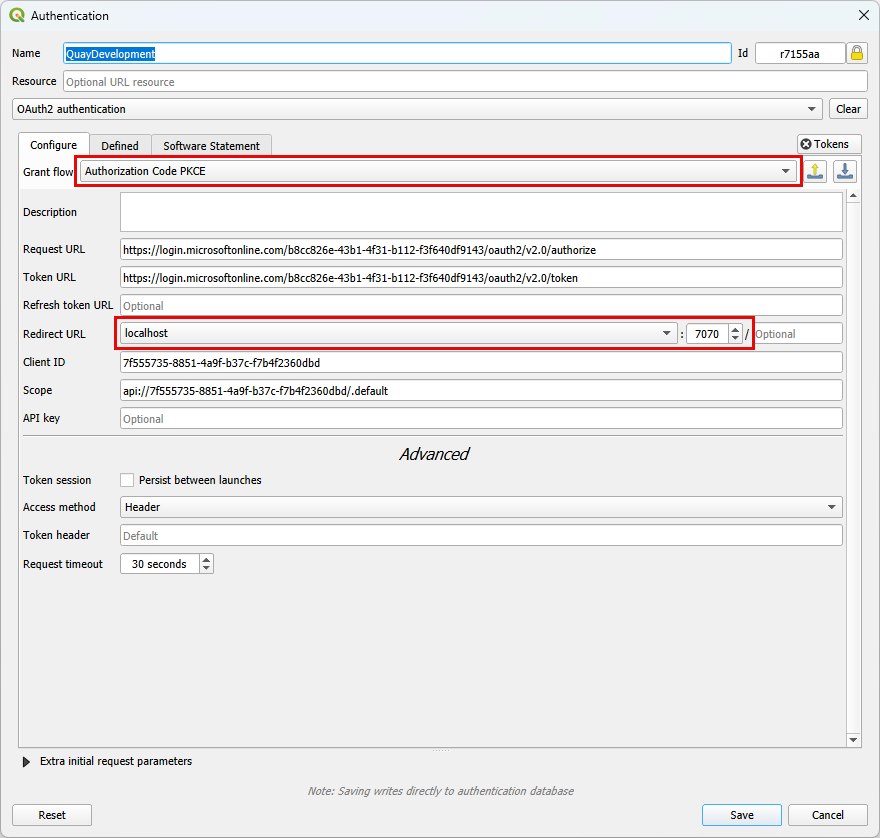
- Configure the OAuth2 client:
- Grant flow: Authorization Code PKCE
- Authorization (Request) URL:
https://login.microsoftonline.com/<tenant-id>/oauth2/v2.0/authorize - Token URL:
https://login.microsoftonline.com/<tenant-id>/oauth2/v2.0/token - Redirect URL:
http://localhost:7070- In QGIS, choose
localhostand set the port to7070.
- In QGIS, choose
- Client ID: your application (client) ID registered for Quay
- Scope:
api://<your-quay-api-app-id>/.default - Optional: enable “Persist between launches” so you don’t need to reconfigure each session
- Save the configuration.
- Test: Trigger authentication (for example, open a layer or plugin that calls Quay). A browser window will open to sign in. After success, QGIS stores the tokens and can call Quay APIs.
Screenshot (example)
Notes
- Tenant: replace
<tenant-id>with your Microsoft Entra tenant ID or domain (e.g., contoso.onmicrosoft.com). - Redirect URL: QGIS listens on localhost; 7070 is a common default for the OAuth callback.
- Scope: using the
/.defaultscope requests the permissions configured on the Quay API app registration. - Client ID: use the “public” client (no secret) registered for desktop/native apps.
Troubleshooting
- Browser opens but returns an error:
- Verify Authorization and Token URLs match your tenant and the
v2.0endpoints. - Confirm the Redirect URL (http://localhost:7070) is registered for the client app.
- Verify Authorization and Token URLs match your tenant and the
- Consent or permission error:
- Ask an administrator to grant admin consent for the Quay API permissions, or use an account with consent rights.
- Nothing happens after sign-in:
- Ensure QGIS is allowed to open a local listener on port 7070 (no local firewall block).
File locations
- Screenshot file in repo:
Site/Site/wwwroot/images/docs/qgis-oauth2-authorization-code-pkce.png
Related
- Installation prerequisites → IIS Features
- Installation prerequisites → HTTP Error 500.19 – Install the ASP.NET Core Hosting Bundle